Hyperoptic calls its broadband routers Hyperhubs, but the name covers several models with different wireless capabilities and connections. The Zyxel EX3301, EX3501 and EX5601 all support Wi-Fi 6, while older customers may have a Nokia, ZTE or Tilgin router.
The differences matter if you connect several wired devices, want better wireless performance or plan to add mesh Wi-Fi. Check the model number on your router’s label before changing settings, buying an extender or following setup instructions.
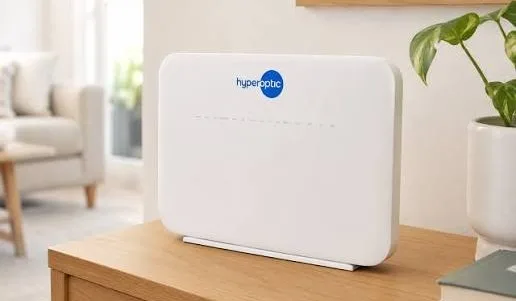
Hyperoptic Hyperhub routers compared
A Hyperhub is included with Hyperoptic broadband. The equipment is supplied on loan and remains Hyperoptic’s, so keep it in good condition and follow its instructions when returning or replacing it.
Confirm the exact model when ordering or renewing, particularly if you need a specific port or wireless feature. Choosing a faster broadband package does not, by itself, establish which Hyperhub you will receive.
| Specification | Zyxel EX3301-T0 | Zyxel EX3501-T0 | Zyxel EX5601-T0/T1 |
|---|---|---|---|
| Wi-Fi standard | Wi-Fi 6 | Wi-Fi 6 | Wi-Fi 6 |
| Wireless bands | 2.4GHz and 5GHz | 2.4GHz and 5GHz | 2.4GHz and 5GHz |
| Wireless class | AX1800 | AX3000 | AX6000 |
| Radio configuration | 2×2 on both bands | 2×2 on both bands | 4×4 on both bands |
| Ethernet WAN | 1 × Gigabit | 1 × Gigabit | 1 × 2.5Gbps |
| Ethernet LAN | 4 × Gigabit | 3 × Gigabit | 1 × 2.5Gbps and 3 × Gigabit |
| USB | 1 × USB 2.0 | 1 × USB 2.0 | 1 × USB 3.0 |
| Telephone ports | 2 | 2 | 2 |
| 6GHz Wi-Fi | No | No | No |
AX1800, AX3000 and AX6000 describe combined theoretical wireless capacity across the bands. They are not broadband speeds or download rates that one device will achieve.
The WAN port connects the router to Hyperoptic’s network. LAN ports connect equipment inside your home, such as a desktop computer, games console or television.
Zyxel EX3301
The EX3301 combines Wi-Fi 6 with four Gigabit LAN ports, making it useful for homes with several wired devices. Its wireless hardware supports OFDMA, MU-MIMO and beamforming, which help compatible devices share the network more efficiently.
It also supports compatible Minihubs for Total Wi-Fi. Neither its WAN nor its LAN connections support speeds above Gigabit Ethernet.
Zyxel EX3501
The EX3501 supports wider 160MHz channels on 5GHz, giving compatible devices a higher potential wireless connection rate than the EX3301.
There is a practical trade-off: it has three LAN ports rather than four. Its Gigabit WAN connection also limits internet traffic, regardless of the AX3000 wireless rating.
Zyxel EX5601
The EX5601 has the most capable hardware of these three models, with 4×4 wireless radios and separate 2.5Gbps WAN and LAN connections.
The faster LAN port can be useful for a compatible computer, network storage device or switch. However, it cannot increase the speed of your broadband package. Nor does its AX6000 rating mean that an ordinary phone or laptop can use all its wireless capacity.
Older Hyperhub models
The Nokia HA-140W-B uses dual-band Wi-Fi 5 and has four Gigabit LAN ports alongside a separate Gigabit WAN connection. It supports compatible Nokia mesh equipment, but it is not a Wi-Fi 6 router.
The ZTE H3600 does support Wi-Fi 6. Earlier ZTE H298A and Tilgin HG2381 routers offer dual-band wireless, while the older ZTE H298N is limited to single-band 2.4GHz Wi-Fi.
An older router may still handle everyday browsing and streaming adequately. Replacement becomes more useful when its wireless performance, coverage or available settings are causing a specific problem.
Wi-Fi speeds and everyday performance
Wi-Fi 6 improves the way compatible devices share wireless capacity. That can help when several people are streaming, downloading files or making video calls simultaneously. Older Wi-Fi devices can still connect, although they will not gain every Wi-Fi 6 benefit.
The EX3501’s wider channels offer greater potential speed at close range. Making use of them requires a compatible device and suitable wireless conditions; neighbouring networks can reduce the benefit in a busy block of flats.
The EX5601 has more radio capacity, but many phones and laptops use two wireless streams. A four-stream router does not automatically double their download speeds.
For wired connections, a Gigabit Ethernet port typically carries around 940Mbps of usable traffic under good conditions. A computer with a 100Mbps network connection, a damaged cable or an unsuitable adapter can impose a much lower limit.
When checking performance, compare a wired speed test with a wireless test near the router, then repeat the wireless test in the room where you normally work or stream. This helps distinguish a broadband connection problem from weak Wi-Fi.
Ethernet is particularly useful for a fixed gaming PC or console because it removes wireless interference from that connection. It will not remove delays caused by a distant game server or congestion elsewhere on the internet.
Home coverage and Total Wi-Fi
Coverage depends on your home’s layout, wall materials, interference and router position. A fast connection entering a flat does not guarantee equally fast Wi-Fi in a bedroom behind several walls.
Keep the Hyperhub in an open, reasonably central position where possible. Avoid cupboards, the floor, the space behind a television and locations beside large electrical appliances. Leave room for ventilation.
The two wireless bands serve different purposes. The 5GHz band usually offers faster connections nearby, while 2.4GHz generally reaches further and works with many smart home devices. Compatible Hyperhubs can steer devices between bands automatically.
Total Wi-Fi and Minihubs
Total Wi-Fi is Hyperoptic’s optional mesh service. It adds a compatible Minihub to extend the main router’s coverage while keeping the same network name and password.
One Minihub is supplied initially. If coverage remains inadequate, Hyperoptic can troubleshoot the connection and may supply a second. An incompatible existing Hyperhub is replaced as part of the service.
Place a wireless Minihub where it can still receive a good signal from the router, rather than at the far end of a room with no reception. The Minihub cannot pass on a reliable connection if its own link is poor.
Setup depends on the equipment supplied. For Zyxel Minihubs, the available methods include the MPro Mesh app or an initial Ethernet connection for pairing. Follow the instructions for the matching router and Minihub.
Adding Total Wi-Fi to an existing 12- or 24-month package may involve moving to a new package and restarting the minimum commitment period. Check this before adding it through My Account.
A mesh Wi-Fi system can improve coverage, but extending the signal does not guarantee the full package speed in every room. Minihubs from different manufacturers should not be assumed to work together.
Hyperoptic router pros and cons
| Pros | Cons |
|---|---|
| Wi-Fi 6 on the Zyxel models compared above | These models have no 6GHz band or Wi-Fi 7 |
| Gigabit connections for wired devices | The EX3501 has only three LAN ports |
| Separate 2.5Gbps WAN and LAN ports on the EX5601 | Faster router hardware cannot increase your package speed |
| Browser access to useful network settings | Settings and wireless capabilities differ between models |
| Compatible mesh equipment available through Total Wi-Fi | Total Wi-Fi can add a monthly charge and restart the contract |
For most households, coverage and device connections matter more than the largest AX number. Four wired devices may make the EX3301’s extra LAN port useful, while an EX3501’s wider wireless channels could benefit a compatible laptop used close to the router.
Router setup and login
Hyperoptic’s engineer will usually set up the router during a new installation. If the home is already connected or you are replacing equipment, setup is normally straightforward.
- Connect the supplied Ethernet cable to the Hyperhub’s WAN port.
- Connect the other end to the Hyperoptic wall socket or the LAN/LAN1 port on the separate fibre converter or ONT, depending on your installation.
- Attach the supplied power adapter and switch on the router.
- Allow several minutes for it to connect.
- Join the wireless network using the details on the router label or removable card.
Connect wired devices to the LAN ports. If you have ordered Hyperoptic’s telephone service, connect a compatible handset to the designated phone port using the appropriate cable. The presence of a phone socket does not mean that a call service is included.
Router login and Wi-Fi details
Connect a device to the Hyperhub, open a browser and enter 192.168.1.1 in the address bar. Use the administrator credentials printed on the router or its details card. These can differ from the Wi-Fi password.
On the Zyxel models, the wireless settings are under Network Setting → Wireless. You can change the network name and password there; untick the automatic password option if necessary before entering your own.
Saving new Wi-Fi details disconnects devices using the previous name or password, so reconnect them afterwards.
Older Nokia, ZTE and Tilgin interfaces use different menus. Follow the instructions for your exact model rather than applying Zyxel steps to another Hyperhub.
Security and network settings
The Zyxel Wi-Fi 6 hardware supports WPA3 wireless security. The security mode available or selected on your router can depend on its configuration and connected devices. WPA2/WPA3 compatibility modes can help accommodate older equipment.
Use a long, unique Wi-Fi password and a separate administrator password. Keep the firewall enabled and allow Hyperoptic’s software updates to complete. Avoid installing generic retail firmware on a provider-managed Hyperhub.
Guest access and parental controls
Settings vary by model and firmware. The Zyxel EX3301 and EX5601 guides include guest Wi-Fi, parental controls, DNS changes, DHCP reservations and port forwarding.
Guest access lets visitors use separate wireless credentials. Check the guest network’s local-access settings if you want to prevent visitors reaching shared devices inside your home.
Parental controls can restrict when a device accesses the internet. They should be used alongside the controls on children’s devices and accounts, particularly where mobile data offers another way online.
The EX5601 also supports USB storage sharing across the home network. Its USB port should not be treated as evidence that Hyperoptic includes a mobile broadband backup service.
CGNAT and port forwarding
Hyperoptic uses carrier-grade NAT for standard IPv4 connections. This shares public addressing between customers and prevents ordinary incoming IPv4 port forwarding from working.
A paid static public IPv4 address is needed for Hyperoptic’s IPv4 port-forwarding setup. This can matter for hosting a server, certain remote-access arrangements and some multiplayer applications.
Changing router, enabling UPnP or adding a forwarding rule does not remove CGNAT. Ordinary browsing, streaming and many online games work without a static IP, so it is unnecessary to add one unless you need the relevant functionality.
A DHCP reservation is different: it gives a device a consistent address inside your home and does not create a public IP address.
Using your own router or mesh system
You can use compatible equipment with Hyperoptic, but confirm the requirements for your connection before buying it. The router needs an Ethernet WAN connection and sufficient routing performance for your chosen package.
Ask Hyperoptic to confirm the WAN configuration for your service. Avoid copying PPPoE credentials or VLAN settings from another provider’s instructions.
Keep the Hyperhub available for troubleshooting. Hyperoptic can check its connection and supplied equipment, while configuration problems with a third-party router may require help from its manufacturer.
If you use Hyperoptic’s telephone service, check the arrangement before replacing the Hyperhub. Internet connectivity on another router does not automatically mean that Hyperoptic’s phone service will work through it.
For better wireless coverage, another option is to connect a third-party mesh system in access-point mode behind the Hyperhub. This lets the Hyperhub manage the internet connection while the mesh handles Wi-Fi.
Leaving both systems in router mode can create double NAT, which may complicate gaming and incoming connections. Switching off Wi-Fi or DHCP alone does not turn a router into a bridge; use the operating mode specified by the equipment manufacturer.
Troubleshooting and FAQs
Start with the connection that is failing. If Ethernet works but Wi-Fi does not, check wireless settings, signal strength and interference before changing the broadband package.
If wired devices are also offline, check the WAN cable, the power to any separate fibre converter or ONT, and Hyperoptic’s service status. Restart the router once and allow it time to reconnect.
On the Zyxel EX3301 and EX5601, a red Internet light can mean that the router detects the network connection but has not established internet access. Other models use different indicators, so check the matching instructions.
A blinking power light can also indicate a firmware update. Do not disconnect the router while an update is in progress.
Restarting and factory resetting are different. A restart normally preserves your settings; a full factory reset removes personalised configuration and may require mesh equipment to be paired again. Reset only after checking the model-specific procedure or following support advice.
Does Hyperoptic have a Wi-Fi 7 router?
The Zyxel EX3301, EX3501 and EX5601 Hyperhubs compared here use Wi-Fi 6. None supports Wi-Fi 7 or the 6GHz band. A Wi-Fi 7 phone or laptop can still connect using an older compatible standard.
Can I upgrade an older Hyperhub?
Contact Hyperoptic through My Account to discuss the equipment available for your service and any charge or contract change. Total Wi-Fi includes a replacement Hyperhub where the existing router is incompatible with the Minihub supplied.
Do I need to return my Hyperoptic router?
Follow Hyperoptic’s instructions for your account. Returns are free when arranged through its returns process, and non-return charges can apply.
When moving home, you may be instructed to leave a working Hyperhub for the next resident. Minihubs, damaged routers and battery backup units can have different return requirements. Keep the fixed wall socket, ONT or fibre converter in place.