The Plusnet Hub Two is the router Plusnet provides with its broadband packages. It uses Wi-Fi 5 and includes a modem for fibre lines. The hardware is the same as the BT Smart Hub 2, running Plusnet’s own software.
Plusnet has not launched a Hub 3. All Plusnet packages still come with the Hub Two. BT has moved on to the Smart Hub 3, which uses Wi-Fi 6, but Plusnet has not added it to its range.
Plusnet Hub Two specifications
| Feature | Plusnet Hub Two |
|---|---|
| Wi-Fi standard | Wi-Fi 5 (802.11ac) |
| Wi-Fi bands | Dual-band, 2.4GHz and 5GHz |
| 2.4GHz band | 3×3, 802.11b/g/n |
| 5GHz band | 4×4, 802.11a/n/ac |
| Antennas | 7 |
| Separate network name for each band | No |
| Ethernet LAN ports | 3 x Gigabit |
| WAN port | 1 x Gigabit, used for full fibre |
| USB | 1 x USB 2.0 |
| Modem | Built in, for fibre lines through the DSL port |
| Wi-Fi 6 or Wi-Fi 7 | No |
| Light control | Yes, in Hub Manager |
| Removable password card | Yes |
| Power use | 13.89W in use, 8.11W in network standby (Plusnet figures) |
Plans that include the Hub Two
Plusnet includes the Hub Two at no extra cost with every broadband package. The average download speed of each plan is below.
| Plan | Average download speed |
|---|---|
| Full Fibre 74 | 74Mbps |
| Full Fibre 150 | 149Mbps |
| Full Fibre 300 | 300Mbps |
| Full Fibre 500 | 500Mbps |
| Full Fibre 900 | 900Mbps |
| Fibre | Up to 66Mbps |
Prices and Reward Card offers change often, so they are listed with the other Plusnet broadband deals. Full fibre is not available everywhere. A postcode check shows which plans reach a home.
Wi-Fi performance
Wi-Fi 5 comfortably supports streaming, video calls and everyday browsing in most homes. Its limits show on the faster plans. On the 500Mbps and 900Mbps plans, the Wi-Fi radios in the Hub Two are usually the limit, not the line. A cable from one of the Gigabit ports delivers the full average download speed, so it is suitable for a desktop, games console or smart TV.
The 5GHz band is faster but has a shorter range. The 2.4GHz band reaches further, but it is slower and picks up more interference from neighbouring networks, Bluetooth devices and microwaves. The Hub Two lets each device choose its band, and devices near the router usually use 5GHz.
The Hub Two cannot give each band its own network name, so everything joins one Wi-Fi network. Some older smart plugs and cameras only support 2.4GHz and can fail to join. Plusnet’s advice is to switch off one of the radios in the router settings while pairing the device, then switch it back on. The Hub Two chooses the Wi-Fi channel by itself, and Plusnet recommends leaving that setting alone. If the connection is poor, use the rescan option in the settings.
Position matters as much as the hardware. A central spot, off the floor and away from thick walls, large metal objects and appliances, gives the best signal. In a larger home, a mesh system works better than a plug-in extender. Run a cable from the Hub Two to the first mesh unit if you can. A speed test next to the router and again in the room with the weakest signal shows where the problem is.
Setting up on fibre
Fibre lines (FTTC) use the DSL port on the back of the Hub Two.
- Plug the grey-ended broadband cable into the Hub Two. Plug the other end into the ADSL socket of a double master socket. With a single socket, fit the filter from the box first and plug the cable into that.
- Connect the power supply and switch on.
- Wait about three minutes. The light turns from green to blue when the hub is connected.
- Join the Wi-Fi network using the name and password on the card at the back, or connect a device with the yellow-ended Ethernet cable.
Setting up on full fibre
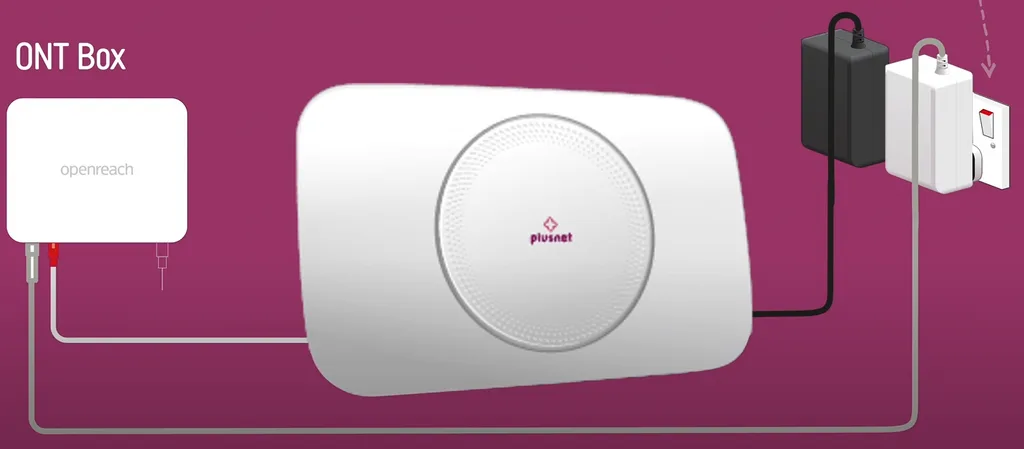
A full fibre line ends at an Openreach box called an ONT. The Hub Two connects to it through the WAN port. It does not use the DSL port.
- Plug the red-ended Ethernet cable into the Hub Two WAN port and the other end into Port 1 (LAN 1) on the ONT. The port numbering on the ONT can differ.
- Connect the power supply and switch on.
- Wait for the light to turn blue, then join the Wi-Fi network or connect a device with the yellow-ended cable.
The ONT is not in the box. An Openreach engineer fits it during activation if the home does not already have one.
Hub Two light meanings
| Light | Meaning |
|---|---|
| Green | Starting up. Wait about three minutes. |
| Blue | Connected to broadband. |
| Orange | Receiving a broadband signal but not connected to the internet. |
| Flashing orange | No broadband signal. Check the grey-ended cable and the filter. |
| Red | A fault. Switch the hub off and on again. |
| Pink | Bridge mode, where the hub works as a modem only. |
| No light | The power is off, or the lights are turned off in Hub Manager. |
| WPS button flashing blue | Waiting for a device to connect. |
| WPS button flashing red | The connection failed. Try again after a couple of minutes. |
Hub Manager and settings
Hub Manager opens at 192.168.1.254 in a web browser. The Wi-Fi name starts with PLUSNET followed by letters or numbers. The password has 10 characters and is case sensitive. Both are printed on the card at the back of the hub. The admin password is on the back or on the sticker Plusnet sends with the hub.
Parental controls are in Advanced settings, under Access control. Plusnet SafeGuard, which filters web content for the household, comes with every package. The Hub Two supports UPnP, so compatible apps and games set up port forwarding by themselves. Manual port forwarding is under Advanced settings, in Firewall.
To reset the hub, hold the pinhole button at the back for 20 seconds with a paperclip. Release it when the light turns green. The light turns blue once the hub is back to its factory settings, and any changes have to be made again.
Phone line and Digital Voice
Plusnet’s packages are broadband only. Plusnet has said traditional landlines retire by 2027, and it points customers who want a home phone to EE and its Digital Home Phone. The phone then plugs into the EE Smart Hub, not the Hub Two. The landline switch off guide explains what changes for homes that still use a landline.
Hub Two compared with Hub One and Hub Zero
The Hub Two replaced the Hub One and Hub Zero on new orders. The Hub One has one feature the Hub Two lacks, which is separate network names for each Wi-Fi band.
| Feature | Hub Zero | Hub One | Hub Two |
|---|---|---|---|
| Wi-Fi bands | Single band, Wi-Fi 4 | Dual-band, Wi-Fi 4/5 | Dual-band, Wi-Fi 4/5 |
| Antennas | 2 | 5 | 7 |
| Separate network name for each band | No | Yes | No |
| LAN ports | 4 x 100Mbps | 4 x Gigabit | 3 x Gigabit |
| WAN port | Not listed | 1 x Gigabit | 1 x Gigabit |
| USB | No | 1 x USB 2.0 | 1 x USB 2.0 |
| Light control | No | No | Yes |
On Wi-Fi standards, Plusnet now lags behind several rivals. The Smart Hub 3 from BT uses Wi-Fi 6 and a 2.5Gbps WAN port. The Virgin Media Hub 5 uses Wi-Fi 6, and the Vodafone Ultra Hub 7 uses Wi-Fi 7.
Plusnet Hub Two verdict
The Hub Two is an adequate router that does the job on every Plusnet package. Setup is straightforward on both fibre and full fibre, and it is free with the plan. On the Fibre, Full Fibre 74 and Full Fibre 145 plans, Wi-Fi 5 usually copes without trouble.
The hardware is clearly dated, though. It is the BT Smart Hub 2 from 2018, and Plusnet stopped short of the newer Wi-Fi standards that BT, Virgin Media and Vodafone now use. Homes on the 500Mbps and 900Mbps plans should plan to connect key devices by cable, or add a mesh system to improve wireless performance.
Plusnet Hub Two pros and cons
Pros
- Included with every Plusnet package at no extra cost
- Works with both fibre and full fibre lines
- Gigabit Ethernet ports handle the 900Mbps plan by cable
- Hub Manager lets you turn the lights off or set a schedule
- Bridge mode is available if you want to use your own router
Cons
- Wi-Fi 5 only, with no Wi-Fi 6 or Wi-Fi 7
- One shared network name for both bands
- Only three LAN ports
- Wi-Fi is usually the limit on the 500Mbps and 900Mbps plans
- No phone service, because Plusnet packages are broadband only
Plusnet Hub Two FAQs
Does the Plusnet Hub Two support Wi-Fi 6?
No. It uses Wi-Fi 5, and Plusnet has not announced a newer router.
Do I have to send the Hub Two back?
Customers who joined Plusnet after 1 February 2024 pay a fee if they do not return the router when asked. Plusnet sends a return request with a prepaid label. Customers who signed up or renewed before that date do not have to return it.
| Item | Charge |
|---|---|
| Hub Two not returned | £50 |
Can I turn off the lights on the Hub Two?
Yes. Hub Manager has a Hub light control setting. It lets you switch the lights off, change their brightness or set a schedule.
Can I use the Hub Two as a modem only?
Yes. The Hub Two has a bridge mode, shown by a pink light, in which it works as a modem only. This suits homes that want to use their own router for Wi-Fi.